The drag and drop technique is perhaps the quickest and easiest way to create a link to a web page. However, using this technique only allows you to use a text box as the ‘trigger’ object that, when selected, will cause the ‘target’ web page to display. If you want to use a different type of ‘trigger’ object, such as a shape or group of shapes, you will need to use the pick action wizard or configure an animation.
To create a hyperlink using this technique:
- Display the Mimic that is to contain the new hyperlink. You need to display the Mimic in Design mode (see Displaying a Mimic).
- In a supported web browser application, display the web page that will be the ‘target’ of the hyperlink.
- Drag the icon next to the Address of the web page from the browser window onto the Mimic. This creates a text box that is configured to act as a hyperlink to the web page. You can edit the text box as required (see Editing a Text Box).
- Save the Mimic.
Remember that if your system uses Original WebX clients, those clients have to use the 32-bit version of Internet Explorer. Other browsers are not supported.
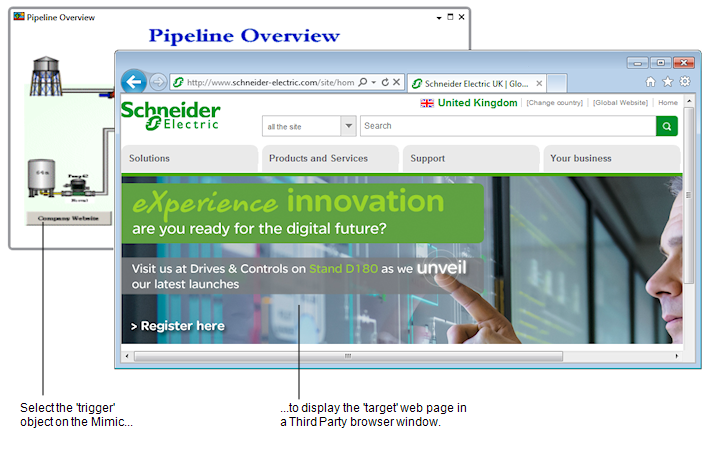
When you display the Mimic in Run Mode, selecting the text box will cause the 'target' web page to be displayed. The 'target' web page will run in a new browser window by default (although you can animate the text box so that it opens in place of the Mimic (see Using the Pick Action Wizard to Create a Hyperlink)).
Further Information