What's New in Geo SCADA Expert 2020
Geo SCADA Expert 2020
New Features and Enhancements

Operational Improvements
ViewX Tab Names
The tab name of a ViewX display usually comprises the value of the Name field of that database item. In some cases, the Name might not be sufficiently descriptive. This could be because the item is configured in a Group Template, and therefore the Name property is fixed. For example, if the same Mimic from two different Group Instances is displayed, then you cannot use the tab name to distinguish between them unless you hover the mouse over the tab (to display the full path of each Mimic).
A new database field has been introduced to enable an Alternative Name to be displayed on tabs. This field has been added to all database items, so is available for use on Mimics, Queries Lists, and so on. The ViewX tab name will use this new field to set the new name of the tab, providing that the field is populated when the database item is displayed (see Configure an Alternative Name for a Database Item).
The field supports the use of trip characters, similar to those used elsewhere in Geo SCADA Expert, such as for Alarm Redirection text. By supporting trip characters, the same alternative name can be evaluated differently for the database item and can therefore be used within Group Templates to set a common alternative name strategy.
For example, the alternative name for a Mimic could be configured as follows:
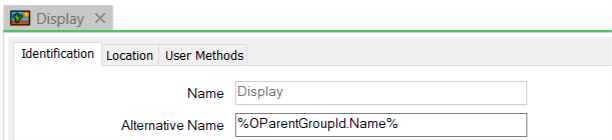
When the Mimic is displayed, the tab name shown is the parent group name of the Mimic:

Virtual ViewX File Download
Virtual ViewX users can now download files from their browsers. These actions are initiated from within scripts. You can, for example, use hyperlinks on Mimics to trigger the scripts. If such links are to compatible files, then the files are downloaded to the user's computer. Example file types include Excel spreadsheets and PDF documents. There is a registry setting on the Virtual ViewX server that controls the document types that are available with this feature (see Use Registry Settings to Enable File Downloads from Virtual ViewX ).

Device Integration
EtherNet/IP Driver
The newest driver added to Geo SCADA Expert is for Allen-Bradley devices using the EtherNet/IP protocol. The EtherNet/IP driver is designed to support the following ranges of Allen-Bradley hardware:
- Micro800
- CompactLogix
- ControlLogix.
The driver supports the following point types in Geo SCADA Expert:
- Analog point
- Digital point (1-bit)
- String point.
The Device Tags for the source of these points can be array, structured, or atomic types. When configuring the points in the database, you can browse the Allen-Bradley controller's address space for a list of the tag names that exist on that particular controller. (The Channel, Set, and Outstation for the controller must be In Service and have valid configuration for the browse feature to interrogate the controller for such information.)
Both Analog and Digital points support Persistence (delayed alarm state), which is calculated within the driver (see Use Persistence to Stop Fleeting Changes in Value from Changing a Point State).
The driver also supports setting of the device clocks in the Allen-Bradley controllers (provided that the controllers support this feature).
To get started with this driver, see Quick Start Tutorial.
SCADAPack 470 Series
SCADAPack 470 series devices are now supported to the same level as the SCADAPack 570 device series. This includes configuration and protocol items, configuration download features and the ability to convert item types from one series to the other. You use the SCADAPack x70 driver to configure these series of devices.
To get started with the driver, see Understand the SCADAPack x70 Driver, and see Quick Start Tutorial.
Realflo 7 and Realflo 6.96 Firmware Support
Enhanced Realflo Gas, Water and Liquids functionality available in Realflo 6.96 is supported in Geo SCADA Expert to provide continued interoperability.
We have also added support for additional features that are available in Realflo 7, including the support of SCADAPack x70 devices.
For information about which driver you should use to communicate with a particular range of SCADAPack controllers, including Realflo-enabled controllers, see Which Driver?.
SCADAPack E Firmware Support
Enhanced functionality available in SCADAPack E 8.14 is supported in Geo SCADA Expert to provide continued interoperability. You use the DNP3 SCADAPack E driver for such interoperability.
To get started with the driver, see Configuring DNP3 SCADAPack E Devices in Geo SCADA Expert, and see Quick Start Tutorial.

System Administration and Security
Server-Server and Server-Client Connections
There are three significant changes which have been made to the way that servers and client PCs connect to each other. These increase the reliability, security and compatibility of connections. These are:
IPv6
IPv6 is the next version of internet protocol designed to overcome limits to the address space within the current IPv4. Clients and servers can communicate using IPv6. By default, they are set to communicate only with IPv4. To enable IPv6 there are check boxes on the Client Connection configuration tool on the system dialog box and on the Server Configuration form on the 'Global Parameters' | 'Advanced' page. When selected, you can enter IPv6 addresses within each server address field.
Coalesced Connections
This change is largely invisible, but it will have a positive impact on network configuration. Prior to this version of Geo SCADA Expert, the Geo SCADA Expert server and client connections required multiple TCP links from client to server and vice-versa. This required the server to have its port open (default 5481) and the client to have a range of ports open (default 5500-5509). This made firewall configuration more complex and increased difficulty when deploying ViewX over VPN or cloud.
Geo SCADA Expert 2020 supports a single connection from a ViewX client to the server. There is no need to have a port open at the client and it reduces the number of connections from the client to the server.
No configuration changes are required to use this feature. Legacy client or server connections will continue to work, although with multiple connections in each direction. Therefore, the firewall and/or VPN configuration supporting this must remain in place until all servers and clients have been upgraded to this version of Geo SCADA Expert (see Understanding Client - System and Server Advise Connections).
To aid monitoring of the status of server - client connections, we have made updates to some of the categories that appear in the 'Server' branch of the Server Status Tool. This includes the addition of three new categories: Comms Child Links, Comms Parent Links, and Comms Threads. For more information about the Tool, see Working with the Server Status Tool.
Authentication and Security
The change to coalesced connections has also required a change to the encryption of the communications links. These links now use TLS security provided by the operating system. Additionally, it is now possible to specify the certificates to be used and checked by the client and server before connections are permitted. These are configured using:
- The 'System Configuration' | 'Connection Security' page of the Server Configuration Tool
(for defining the server's connection security settings that apply for server-client connections) - The 'System Configuration' | 'Partners' | 'Connection Security' tab of the Server Configuration Tool
(for defining the connection security settings that apply for outgoing server-to-server connections on a multi-server Geo SCADA Expert system) - The Connection Security window, accessed by selecting the 'Security' button when using the Client applet to edit the properties of a client connection
(for defining the client's connection security settings that apply for client-server connections).
For information about how to use the certificate validation features, see Certificates for Geo SCADA Expert Server and Client Connections.
Automatic Database Backup on Upgrade
When Geo SCADA Expert 2020 starts following an upgrade, by default it will now automatically make a copy of the Configuration and Real-time parts of the database (see Automatic Database Backup on Upgrade). These two parts of the database are version-dependent. Previously after an upgrade it was only possible to uninstall Geo SCADA Expert, install an earlier version and restart after first following instructions to back up the database. With this new version of Geo SCADA Expert, the database is copied to a separate folder during start-up, and that copy can be restored in order to run with an older version (see Perform a Downgrade after Upgrading Geo SCADA Expert). We recommend that you take a full backup of your database before any upgrade, but this measure provides an additional partial backup (which does not include historic data).
Upgrade database backups are stored by default in this location:
C:\ProgramData\Schneider Electric\ClearSCADA\UpgradeDatabaseBackup
You can change the location using the Server Configuration tool. There is a registry setting available to deactivate this feature if required (see Disable Automatic Database Backups on Upgrade).
Security Settings for Standby-Only Servers
With this and previous versions of Geo SCADA Expert, each Geo SCADA Expert server has a set of configurable Permission Restrictions that you can use to disable specific user permissions even if the user has those permissions enabled on their User Account (see Define whether any Permissions are Restricted). These server-wide Permission Restrictions are commonly used to restrict privileged operations on Permanent Standby servers, which might be placed in a separate network security zone from the Main/Standby servers. These settings have now been moved for Permanent Standby servers and they are to be configured on Main/Standby servers.
 WARNING
potential security breach
For information about using the Permission Restrictions feature on Permanent Standby servers, see Specify Whether a Permanent Standby Server Inherits its Permission Restriction Settings, and see Permanent Standby Permission Restrictions Tab.
Logging and Diagnostics - Performance Reporting
When managing a Geo SCADA Expert system, one of the challenges is to make sure that overall point data processing activity levels are under control. This is important because the level of activity directly affects database locking, which can lead to performance issues if points are being updated too frequently.
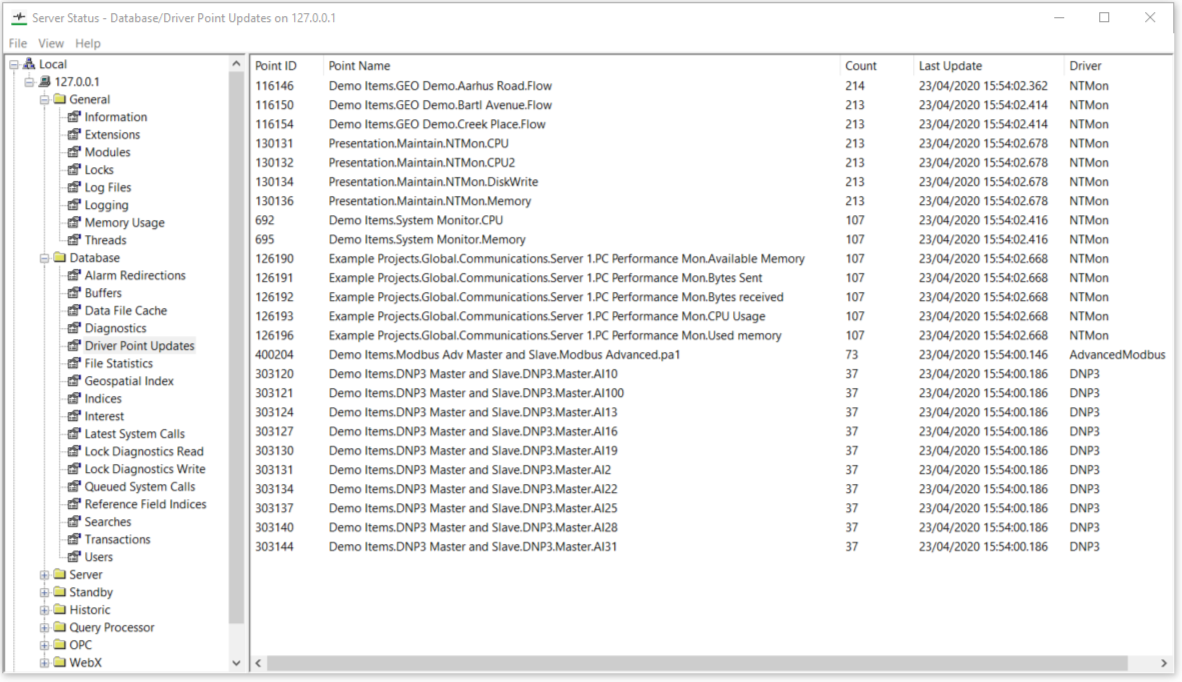
The new feature to help administrators dive into the point processing load is a live table of top point update counts in the Server Status tool, the Driver Point Updates page. The table on this page provides a potential action list of points that might be 'noisy'. For example, points that might be configured to report data too often, or points that are connected to equipment that has electrical noise which is not being filtered by persistence settings of the RTU.
This is a sample screen showing the page: